
Timesheet
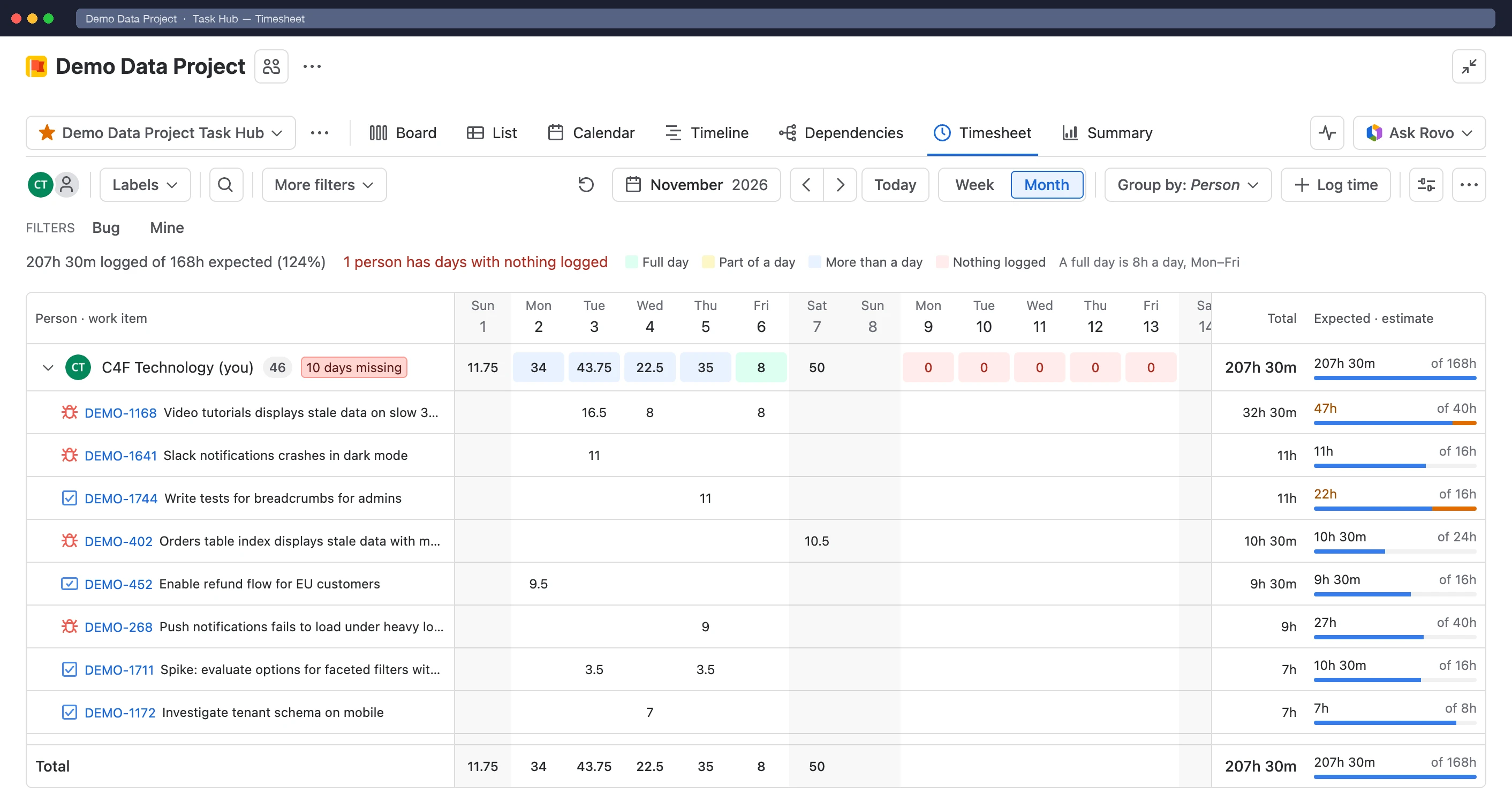
The Timesheet view shows the worklogs on a Task Hub’s work items as a grid of people and days. It reads and writes Jira’s own worklogs, so time logged here shows in Jira, and time logged in Jira shows here.
Read the grid
Section titled “Read the grid”- Switch between Week and Month, and step through periods with the arrows. Select the period label to pick a date.
- Each row is a person. Your own row is always first, even when you haven’t logged anything yet.
- Use Group by to show Person or Work item rows. Open a person to see the work items they logged time on.
- The Total and estimate columns stay pinned on the right. A bar shows time logged against the original estimate, and turns orange once it’s over.
- Turn on Highlight missing time in View settings to mark past working days with nothing logged. Show days off adds weekends and holidays, which come from the Task Hub’s working days.
- Drag the edge of the name column to make it wider. Double-click it to reset.
Log time
Section titled “Log time”- Select a day on your own row to log time, or to edit or delete a worklog you logged.
- Select Log time in the toolbar, pick a work item from the Task Hub and enter the time.
Enter time as 2h 30m, 1.5 (hours) or 1d. You can only change your own worklogs, as in Jira.
Export
Section titled “Export”Open ••• › Export to download the time shown as Excel (.xlsx), with the grid and every worklog on separate sheets, or as CSV.
The Timesheet doesn’t update live: select Refresh to load time logged elsewhere.