
Board
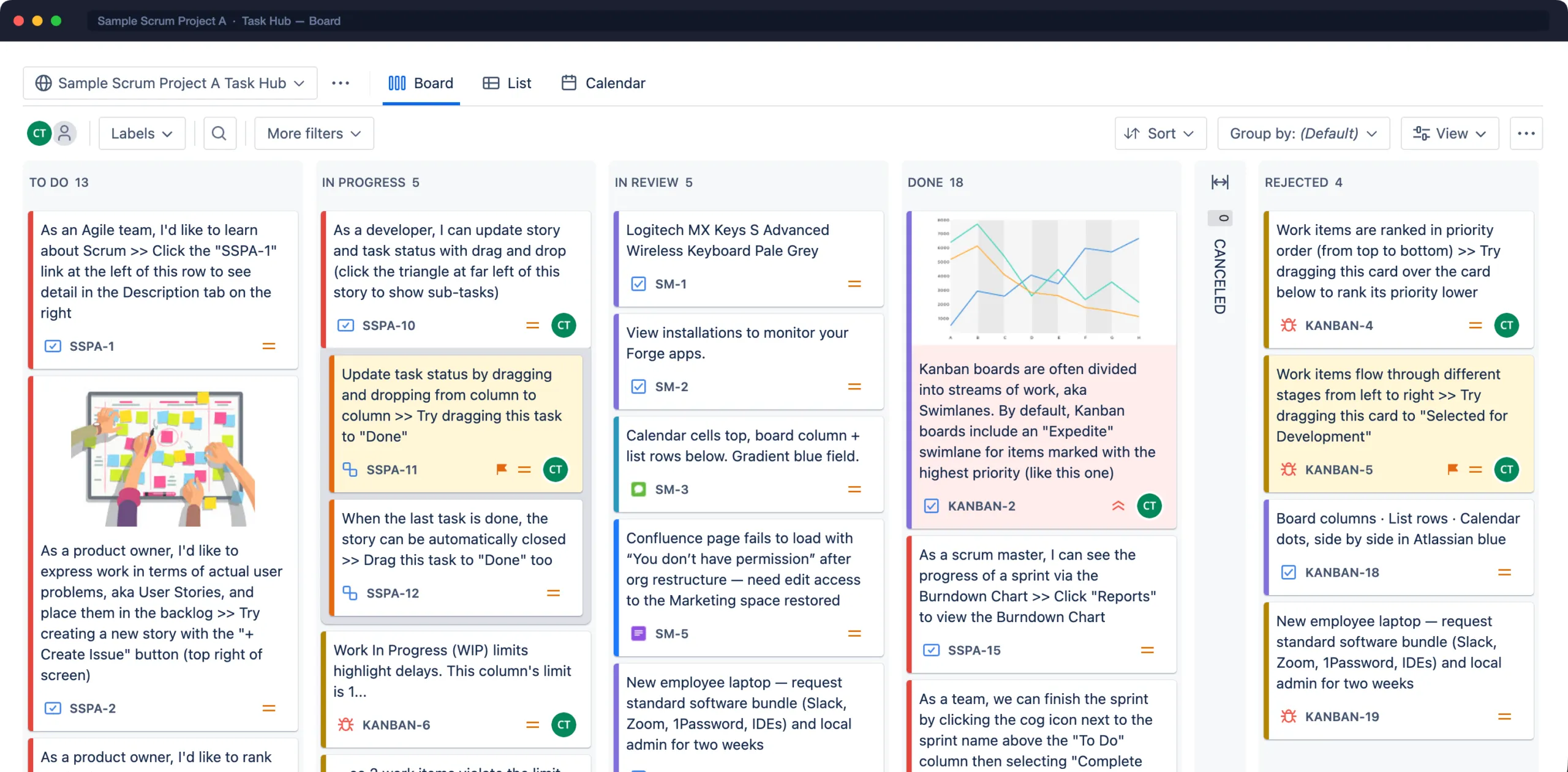
The Board shows your Task Hub’s work items as cards in columns. Columns map to your workflow statuses. See Columns & WIP limits.
Move work
Section titled “Move work”- Drag a card to another column to transition it. If more than one transition leads to the target column, or the transition has a screen, Task Hub asks you to choose or fill in the required fields.
- Drag within a column to rank the card up or down.
- Drag between swimlanes to change the field the swimlane groups by, for example the assignee.
Create work
Section titled “Create work”Select + Create at the bottom of a column to add a work item inline. It’s created in the column’s first status, and in the current swimlane when swimlanes are on.
Filter and find
Section titled “Filter and find”The toolbar above the board includes:
| Control | What it does |
|---|---|
| Avatars | Show only work assigned to the people you select |
| Labels | Filter by one or more labels |
| Search | Find text in summaries and keys |
| More filters | Filter by type, priority, status, components and more, or write JQL |
| Quick filters | Filters your admin saved for this Task Hub |
| Sort | Sort cards within columns by a field instead of by rank |
| Group by | Switch swimlanes on the fly, just for you |
| View | Show or hide card fields, subtasks and empty swimlanes |
Column tools
Section titled “Column tools”- Collapse a column to give the others more room. A collapsed column still shows its count, and you can still drop cards on it.
- Columns with a WIP limit turn red when they go over the maximum, or under the minimum.
- The column header shows the number of work items, and the total estimate if estimation is on.
Card actions
Section titled “Card actions”Right-click a card, or open its ••• menu, to:
- open it in the issue editor
- assign it, change its priority or edit its labels
- flag it
- add a subtask, link it or comment on it
- delete it, if you have permission
Select several cards with Ctrl/⌘-click or Shift-click to act on them all at once. See Bulk update.
Print cards
Section titled “Print cards”Use ••• › Print to print cards for a physical board.